Parent / guardian
Find your child’s homework and school updates
Task guide · Reviewed 1 November 2026 · TaleemLink product & support team
Start with the child and organisation you intend to view, then open the relevant page from the parent menu.
Step by step
- Use your school-provided client website and approved personal parent account.
- Check the organisation and linked child shown before reading a summary. A parent can have children at unrelated organisations, but access must be separately approved.
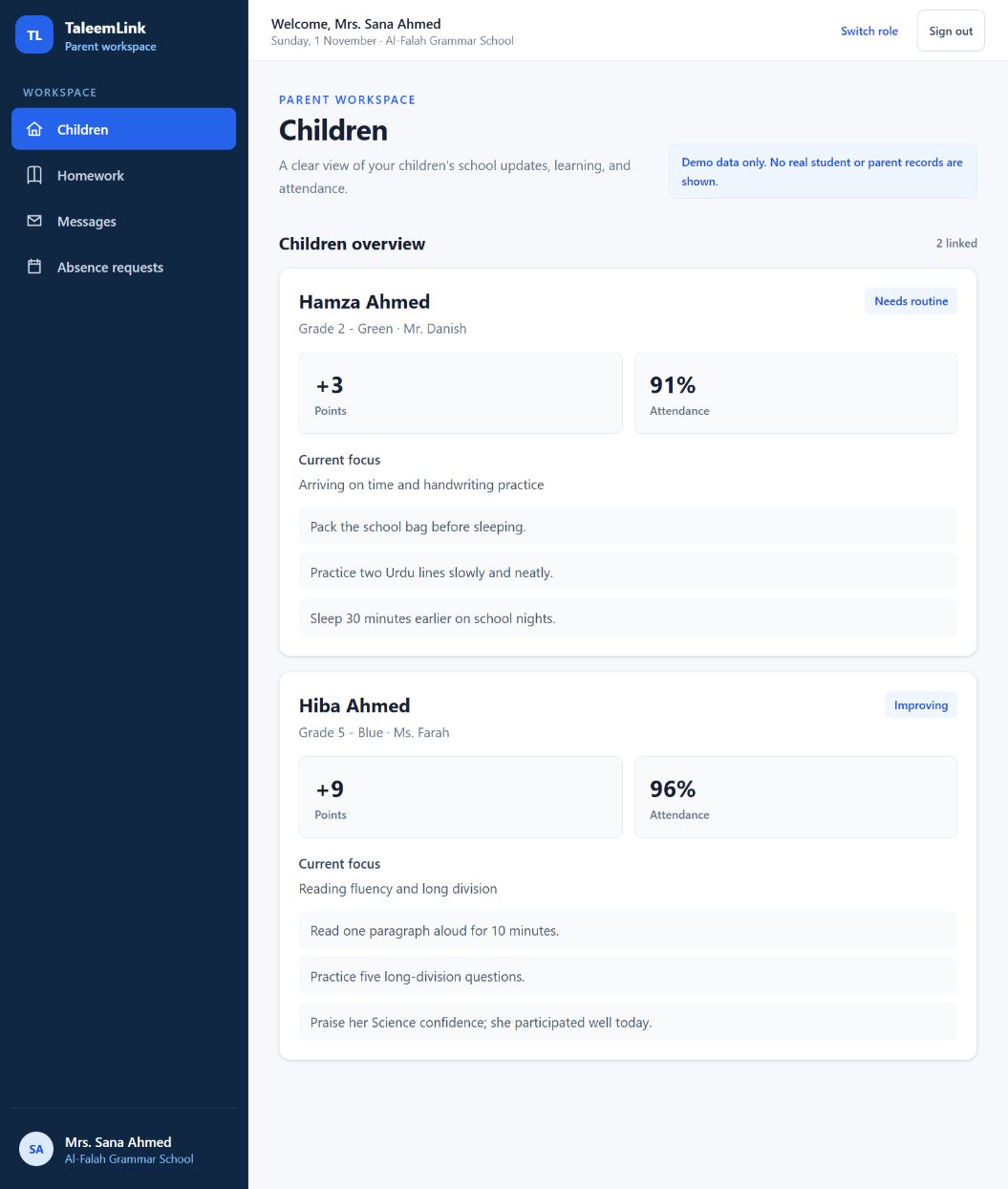
- Open Children for the child’s class, learning context and available attendance summary.
- Open Homework and check the named child, instructions and due date. Individual assignments are not meant for classmates.
- Open Messages for notices and child-specific updates. Use the separate conversation guide before replying.
- If a child or organisation is missing or wrong, contact the relevant school administrator. Do not create a second account to work around the problem.
Expected outcome
You find the correct child’s information and know who can correct an access problem.
Availability & important notes
The screenshot is an example with fictional records. Live invitation, organisation switching and verified child-link integration are still being completed for the first production rollout.
Still need help?
Start with your school administrator for account access or school records. Use the school’s known contact if the site is unavailable. Never share your password.
How to get support →