Everyone
Start exploring TaleemLink
Demo guide · Reviewed 1 November 2026 · TaleemLink product & support team
Try the fictional demonstration safely. Your school will provide different sign-in details when its live service is ready.
Step by step
- Open Live Demo from the website navigation.
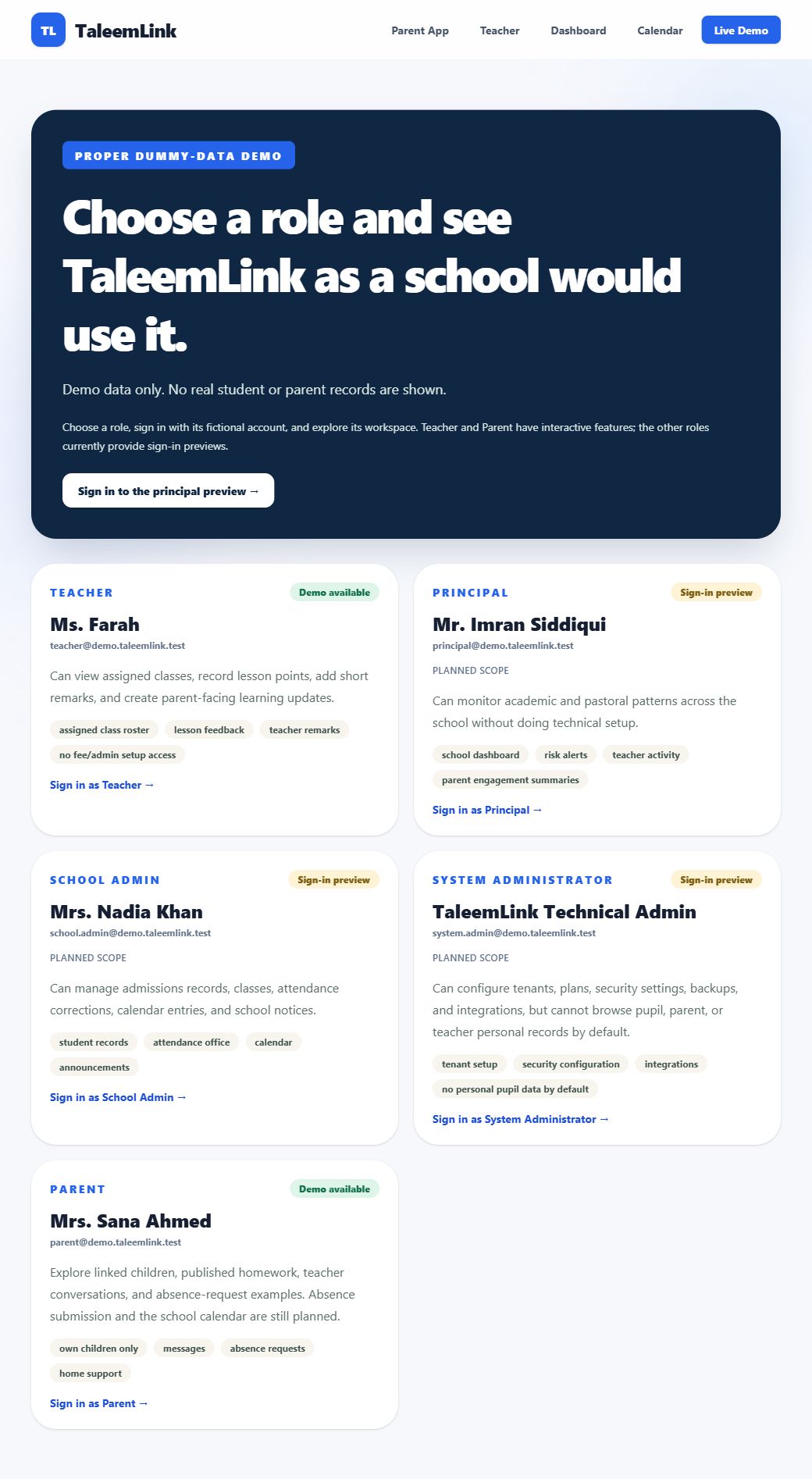
- Choose the role you want to explore. Teacher and Parent contain interactive examples; the other cards are sign-in previews.
- On the sign-in page, use the fictional account details shown there and select Sign in securely. Never reuse demo details for a real school.
- Use the workspace menu to open a page. Items labelled Planned are not available yet.
- Select Sign out when you finish, especially on a shared device. To try another role, return to Live Demo and sign in separately.
Expected outcome
You can explore invented school information without creating or changing a real school account.
Availability & important notes
Do not enter real names, contact information or pupil records. Demo changes may be temporary. This guide does not activate a live school service.
Still need help?
Start with your school administrator for account access or school records. Use the school’s known contact if the site is unavailable. Never share your password.
How to get support →