Parent / guardian
Parent or guardian: check your children’s updates
Demo guide · Reviewed 1 November 2026 · TaleemLink product & support team
Each menu item opens its own page. Start with Children, then check homework or messages.
Step by step
- Choose Parent on Live Demo and sign in using the fictional details shown.
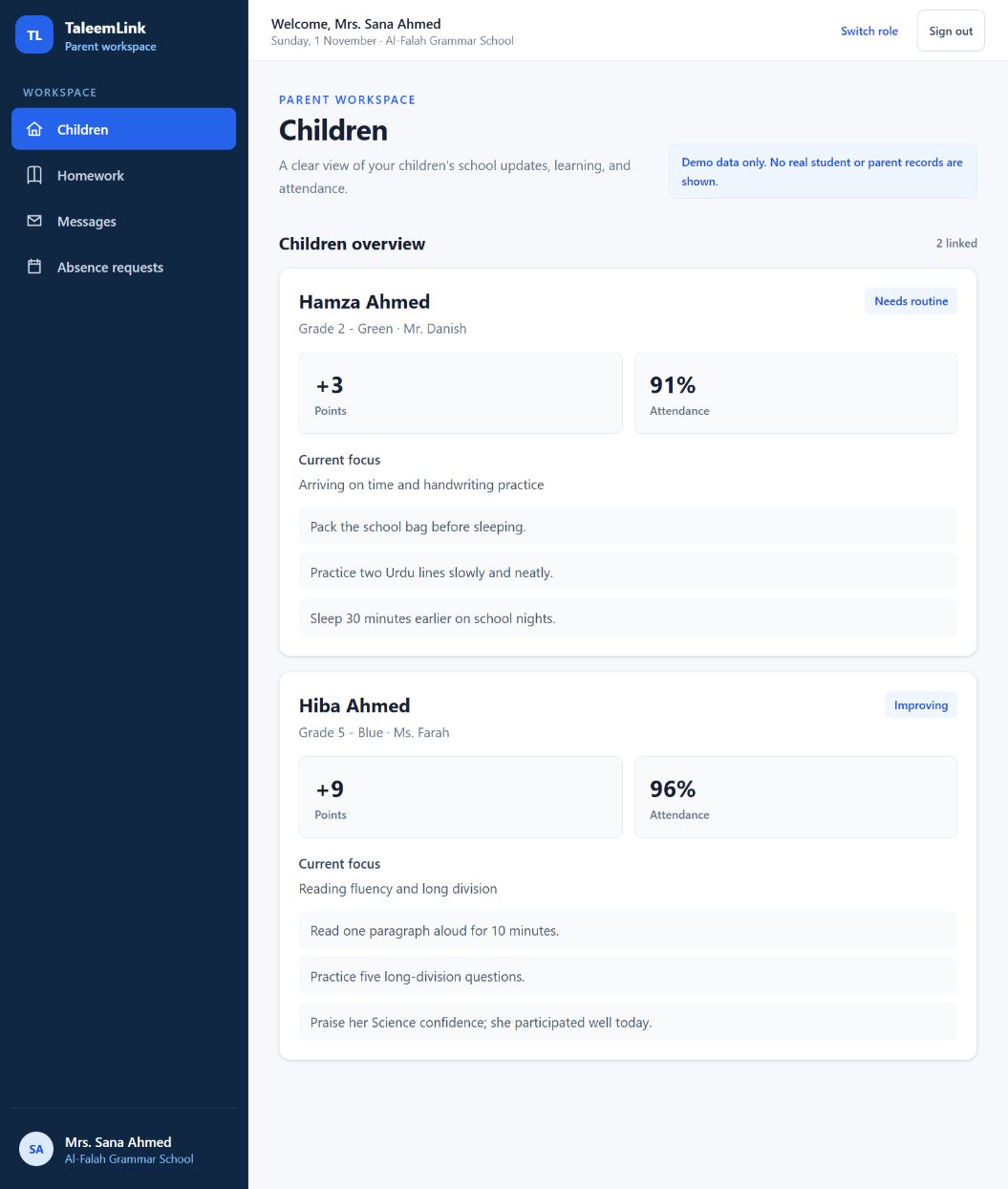
- On Children, find the child’s name and class before reading their learning and attendance summary.
- Choose Homework to see published tasks. Check the named child and due date; individual homework is not intended for classmates.
- Choose Messages to read school notices and child-specific updates. A school-wide notice is one-way.
- Where a child-specific conversation offers a reply, open the update and check the teacher and child before replying. Closed conversations do not accept further replies.
- Absence requests currently shows examples; live absence submission is not connected yet.
- Select Sign out when you finish. On a phone, open the navigation menu if the links are hidden.
Expected outcome
You can find the relevant child’s homework and messages without searching through one long page.
Availability & important notes
Live parent access will be invitation-only. Organisation switching and invitation acceptance are being built, not available in this demo. Parents never receive data-import tools.
Still need help?
Start with your school administrator for account access or school records. Use the school’s known contact if the site is unavailable. Never share your password.
How to get support →